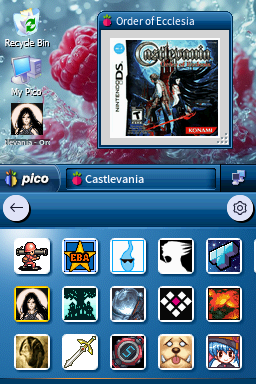
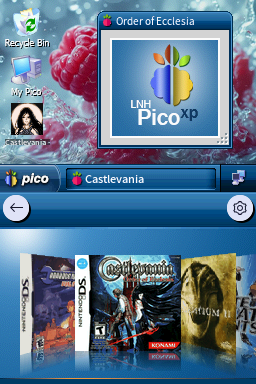
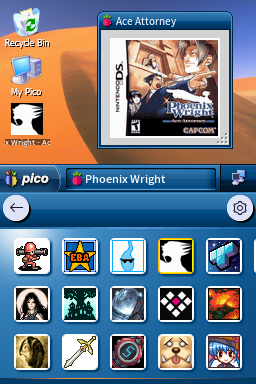
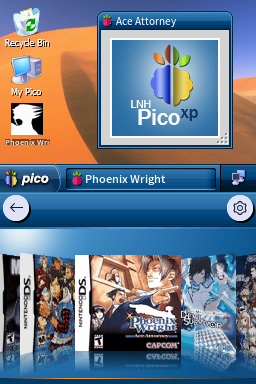
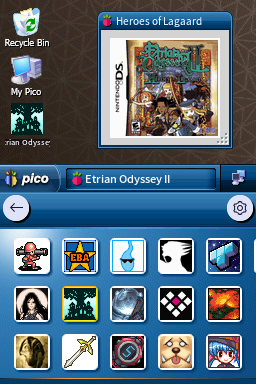
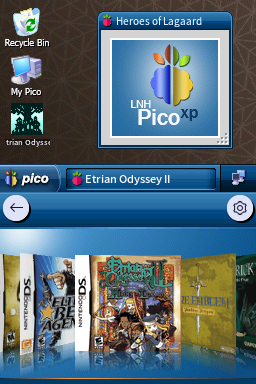
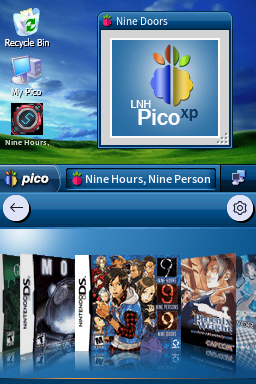
![PicoXP Embedded [Horizontal]](/assets/images/pico/PicoXP Embedded - Embedded H/1.png)
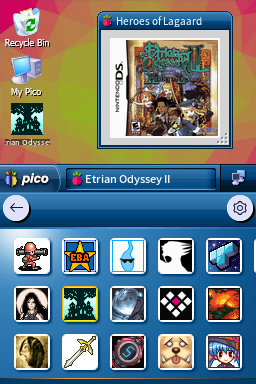
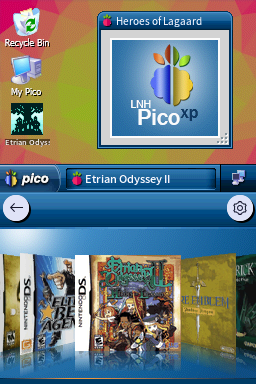
PicoXP Embedded [Horizontal]
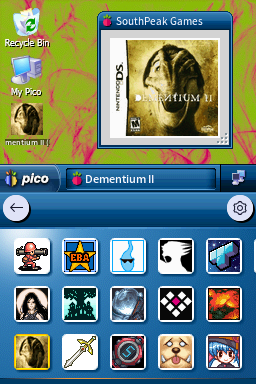
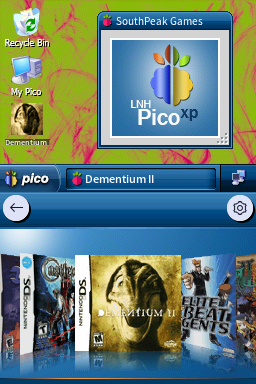
360adTheme based on Windows XP.
Downloads
Download PicoXP Embedded - Embedded H.7z Download PicoXP Embedded - Azul H.7z Download PicoXP Embedded - Bliss H.7z Download PicoXP Embedded - Desert H.7z Download PicoXP Embedded - Energy Bliss H.7z Download PicoXP Embedded - Field H.7z Download PicoXP Embedded - Flag (Blue) H.7z Download PicoXP Embedded - Flag (Green) H.7z Download PicoXP Embedded - Flag (Grey) H.7z Download PicoXP Embedded - Flag (Orange) H.7z Download PicoXP Embedded - Flag (Pink) H.7z Download PicoXP Embedded - GreenPink H.7z Download PicoXP Embedded - PicoFX H.7z Download PicoXP Embedded - Picometric H.7z Download PicoXP Embedded - PinkGreen H.7z Download PicoXP Embedded - Raspberry H.7z Download PicoXP Embedded - Tulips H.7z Download PicoXP Embedded - Wind H.7z Download PicoXP Embedded - Zune H.7z Download PicoXP Embedded - Zune Pattern H.7zTheme Installation Instructions
-
Download
PicoXP Embedded - Embedded H.7z. -
Open/Extract the
.7zarchive. You can use 7-Zip to do this. -
Inside the
.7zarchive, you will find a folder calledPicoXP Embedded - Embedded H. Copy this folder to/_pico/themeson your flashcart’s SD card. -
Navigate to the
_picofolder, and find thesettings.jsonfile. Open it with Notepad. -
Edit the
"theme":line, changing the theme name toPicoXP Embedded - Embedded H. -
The final edited line in
settings.jsonshould look like this:"theme": "PicoXP Embedded - Embedded H", -
Place the SD card back into your cart, and boot into Pico-Launcher.
-
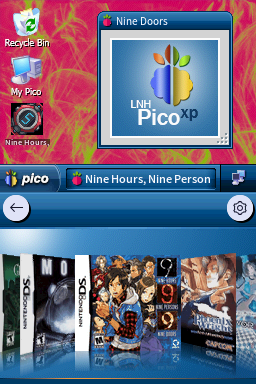
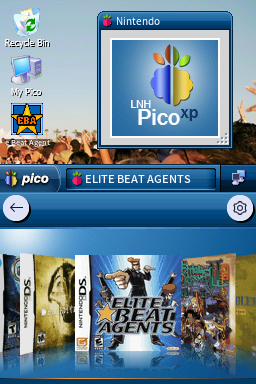
The icon/coverflow layout mode is changeable in the Pico-Launcher settings menu. Change it if the theme requires a specific layout.
Multiple Wallpaper Options
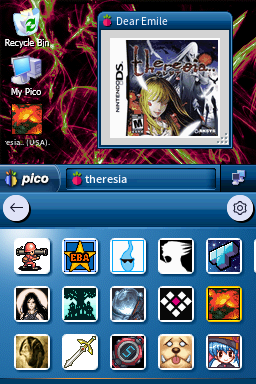
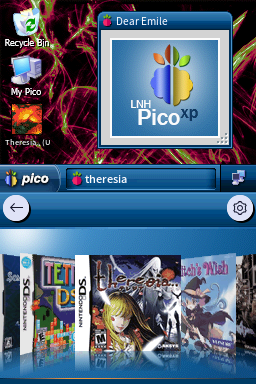
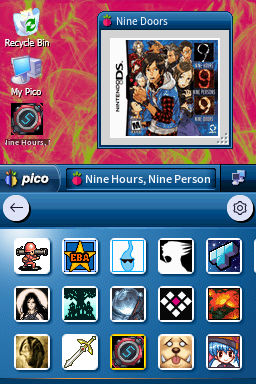
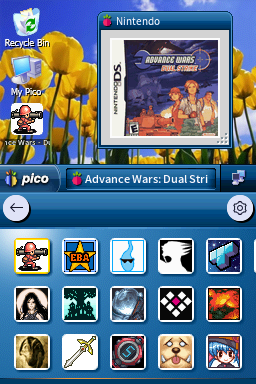
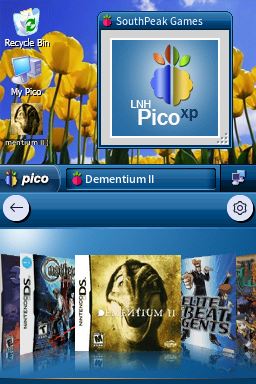
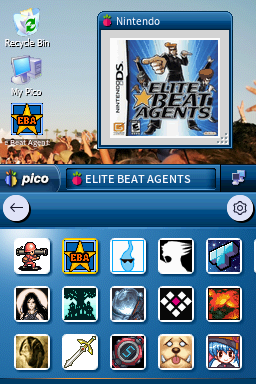
This theme has many different wallpapers available, so check out the previews! If you choose to use one of the other wallpaper versions instead of the default Embedded wallpaper, simply subsitute PicoXP Embedded - Embedded H in the installation instructions above with the theme name of your wallpaper choice.
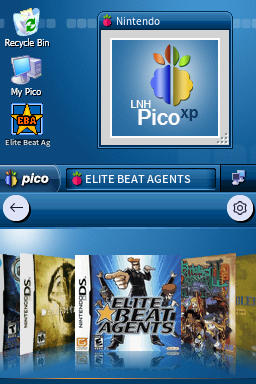
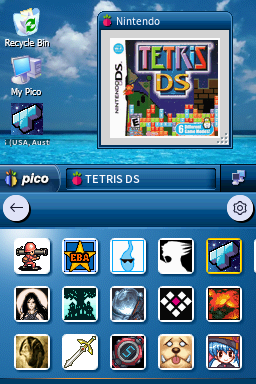
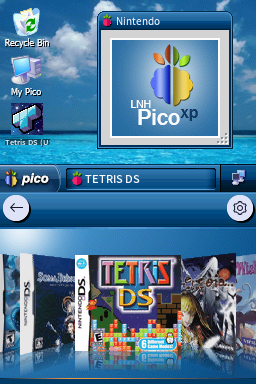
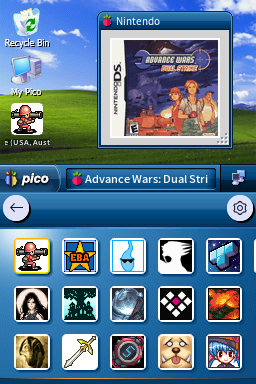
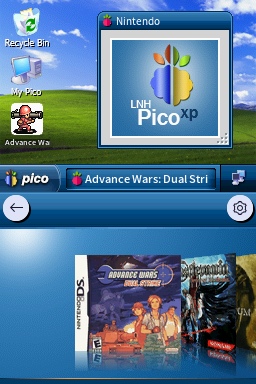
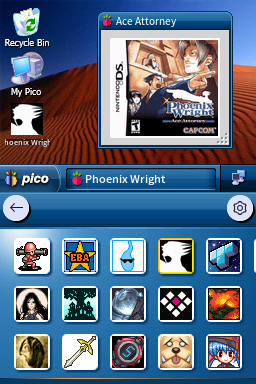
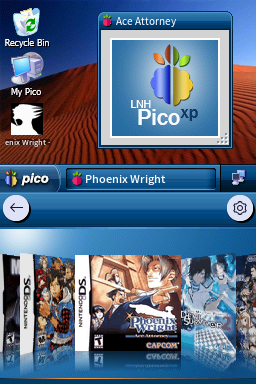
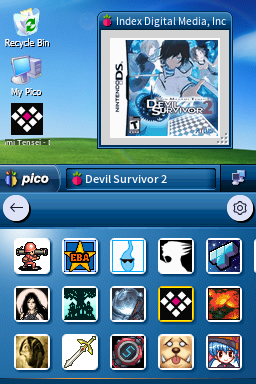
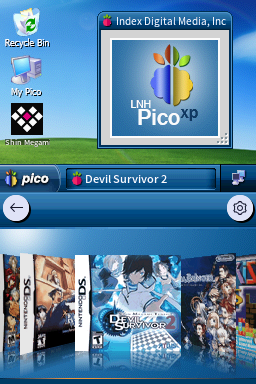
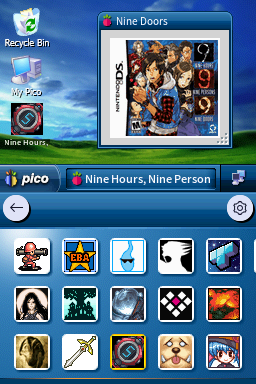
 H/1.png)
 H/2.png)
 H/1.png)
 H/2.png)
 H/1.png)
 H/2.png)
 H/1.png)
 H/2.png)
 H/1.png)
 H/2.png)