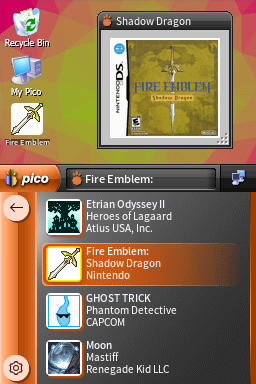
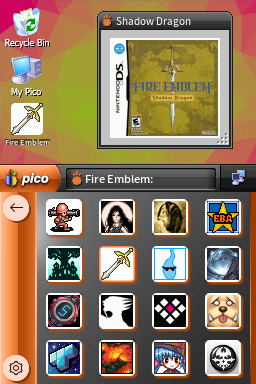
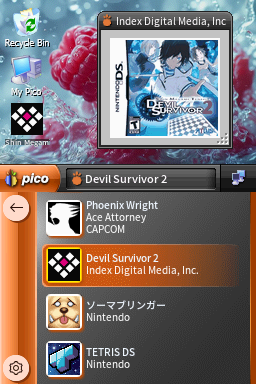
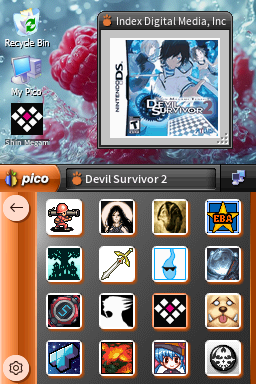
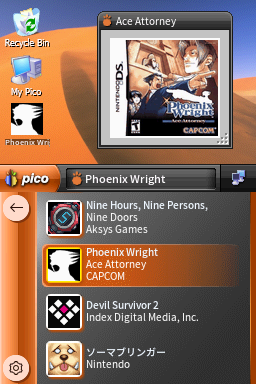
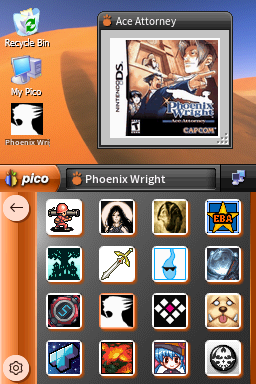
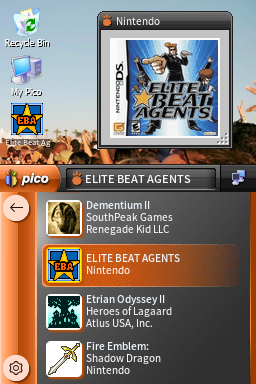
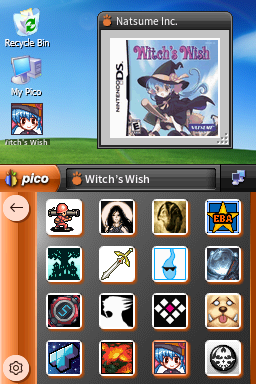
![PicoXP Zune [Vertical]](/assets/images/pico/PicoXP Zune - Zune Pattern V/1.png)
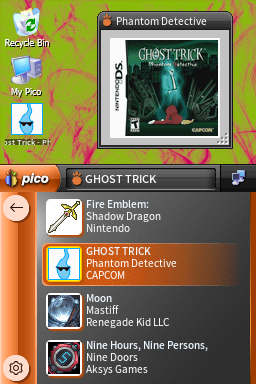
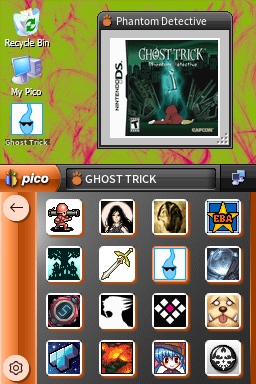
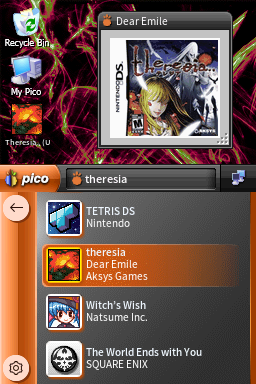
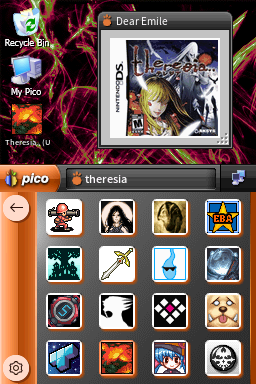
PicoXP Zune [Vertical]
360adTheme based on Windows XP.
Downloads
Download PicoXP Zune - Zune Pattern V.7z Download PicoXP Zune - Azul V.7z Download PicoXP Zune - Bliss V.7z Download PicoXP Zune - Desert V.7z Download PicoXP Zune - Embedded V.7z Download PicoXP Zune - Energy Bliss V.7z Download PicoXP Zune - Field V.7z Download PicoXP Zune - Flag (Blue) V.7z Download PicoXP Zune - Flag (Green) V.7z Download PicoXP Zune - Flag (Grey) V.7z Download PicoXP Zune - Flag (Orange) V.7z Download PicoXP Zune - Flag (Pink) V.7z Download PicoXP Zune - GreenPink V.7z Download PicoXP Zune - PicoFX V.7z Download PicoXP Zune - Picometric V.7z Download PicoXP Zune - PinkGreen V.7z Download PicoXP Zune - Raspberry V.7z Download PicoXP Zune - Tulips V.7z Download PicoXP Zune - Wind V.7z Download PicoXP Zune - Zune V.7zTheme Installation Instructions
-
Download
PicoXP Zune - Zune Pattern V.7z. -
Open/Extract the
.7zarchive. You can use 7-Zip to do this. -
Inside the
.7zarchive, you will find a folder calledPicoXP Zune - Zune Pattern V. Copy this folder to/_pico/themeson your flashcart’s SD card. -
Navigate to the
_picofolder, and find thesettings.jsonfile. Open it with Notepad. -
Edit the
"theme":line, changing the theme name toPicoXP Zune - Zune Pattern V. -
The final edited line in
settings.jsonshould look like this:"theme": "PicoXP Zune - Zune Pattern V", -
Place the SD card back into your cart, and boot into Pico-Launcher.
-
The icon/coverflow layout mode is changeable in the Pico-Launcher settings menu. Change it if the theme requires a specific layout.
Multiple Wallpaper Options
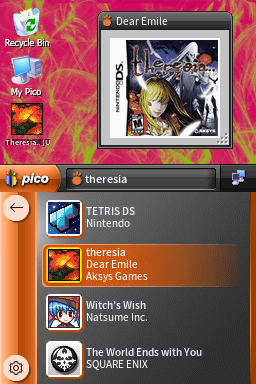
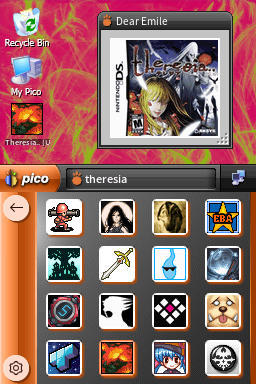
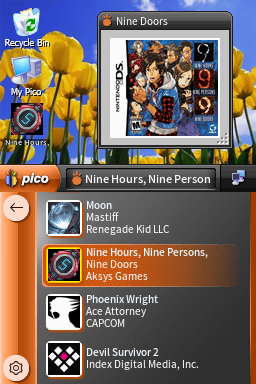
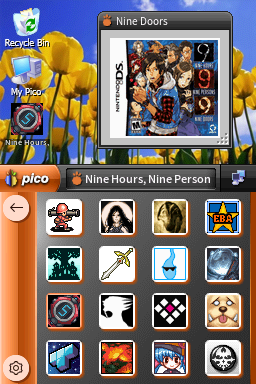
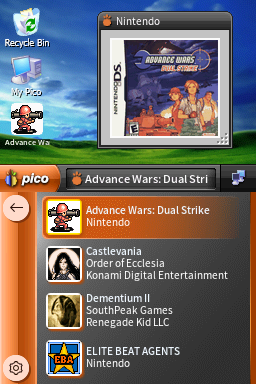
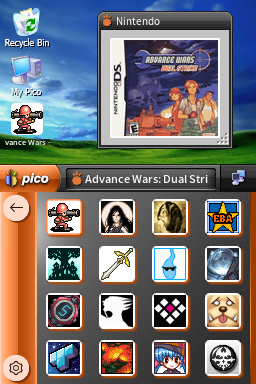
This theme has many different wallpapers available, so check out the previews! If you choose to use one of the other wallpaper versions instead of the default Zune Pattern wallpaper, simply subsitute PicoXP Zune - Zune Pattern V in the installation instructions above with the theme name of your wallpaper choice.
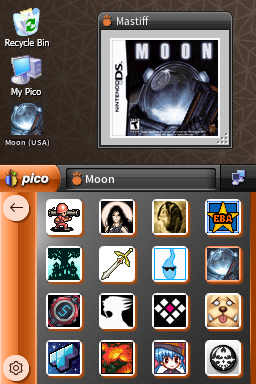
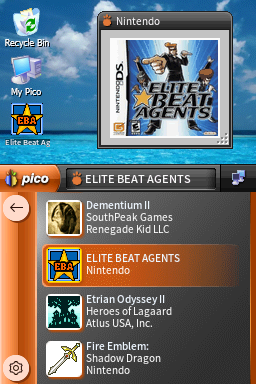

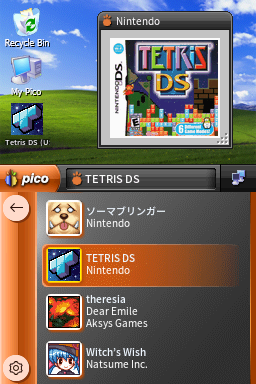
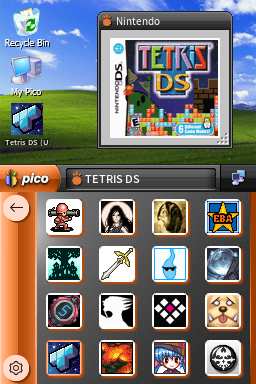
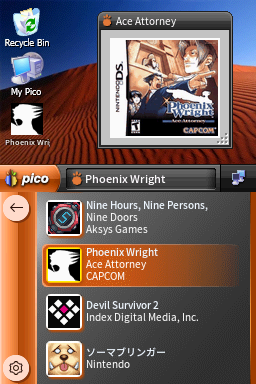
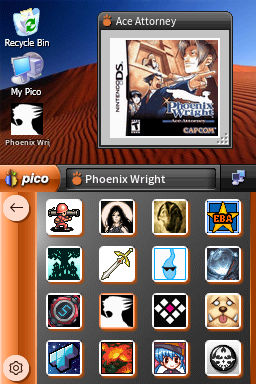
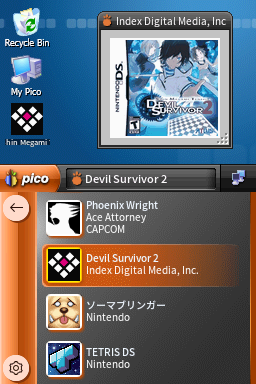
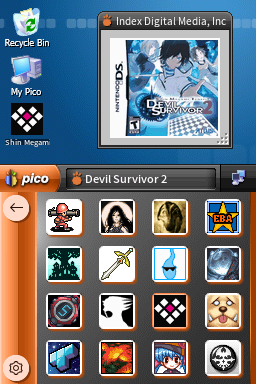
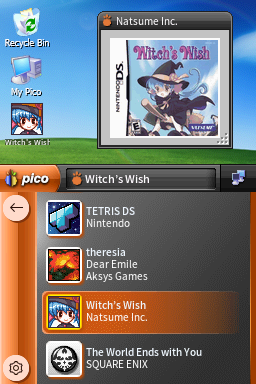
 V/1.png)
 V/2.png)
 V/1.png)
 V/2.png)
 V/1.png)
 V/2.png)
 V/1.png)
 V/2.png)
 V/1.png)
 V/2.png)